
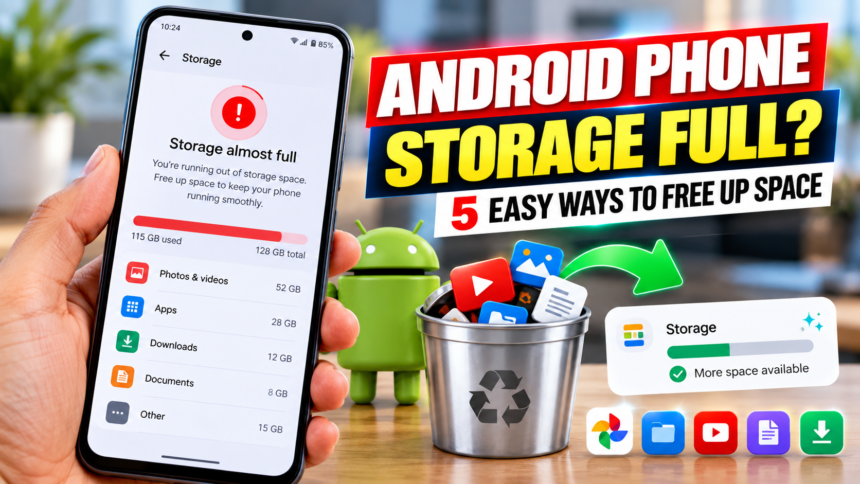
Running out of storage on an Android smartphone can quickly become frustrating. When the internal storage is nearly full, users may face problems while taking new photos, downloading applications or saving files.
Photos, videos, apps and downloaded content can gradually consume a large amount of space, even on smartphones with high storage capacity. However, you do not necessarily have to start deleting important files when the low-storage warning appears. A few simple storage management steps can help create additional space.
Use Smart Storage to Remove Backed-Up Media
Some Android smartphones offer a Smart Storage feature that can automatically remove local copies of photos and videos that have already been backed up to Google Photos.
This can be useful for users who have a large collection of pictures and videos stored online. The backed-up content remains available through Google Photos, while removing the local copies can free up space on the phone.
Depending on the device and Android version, the option may be available through:
Settings → Storage → Free up space → Menu → Smart Storage
The exact location can vary between smartphones, so the option may appear under a slightly different menu.
Remove Unwanted Files and Apps
One of the easiest ways to recover storage is to identify which types of files are using the most space. Open the storage section in your phone’s Settings and check the categories consuming the available space.
Old photos, videos and unnecessary files can then be removed. If your important photos and videos have already been backed up to Google Photos, you can consider deleting their local copies.
It is also worth checking downloaded content from streaming services such as Google TV and YouTube Music, as offline videos, music and other media can occupy considerable storage.
Apps that are rarely used can also take up valuable space. Review the apps installed on your phone and uninstall those you no longer need.
Clearing an app’s cache may also recover some storage. However, users should be careful not to select options such as Clear storage or Clear data unless they understand the consequences, as these options can remove stored app information.
Archive Apps You Rarely Use
Android also provides an option to automatically archive apps that are not used frequently. Archiving removes the app from the device while retaining its icon and personal data, allowing the app to be restored later when required.
The automatic archiving option can be accessed through:
Google Play Store → Profile picture → Settings → General → Automatically archive apps
This can be particularly useful for people who have many applications installed but use only a small number of them regularly.
Clean the Downloads Folder
The Downloads folder is another area that can quietly consume a significant amount of storage. Old documents, PDFs, images, videos and installation files can remain on the phone long after they are no longer needed.
To clean it, open the Files app or Files by Google and go to the Downloads folder. Review the files and remove unnecessary items, paying particular attention to large videos, duplicate files and old downloads.
Regularly checking this folder can prevent unwanted files from accumulating over time.
A Few Simple Changes Can Free Up Space
A full Android phone does not always mean that important photos, videos or applications need to be deleted immediately. Checking Smart Storage, removing unnecessary files, uninstalling unused apps, archiving rarely used applications and cleaning the Downloads folder can help recover storage.
These simple steps can make it easier to manage phone storage and keep enough free space available for new photos, apps and downloads.
Disclaimer: The information provided in this article is for general informational purposes only. Storage options and menu locations may vary depending on the smartphone manufacturer, Android version and device settings. Users should review files carefully before deleting or clearing data to avoid accidentally removing important information.